What's New With Sesh (Fall 2026)
My smart tmux session manager, sesh, has been out for over two years. In that time lots of people from all over the world have given it a star, dozens of people have contributed to the project, and we’ve had over 60 releases.
So I want to take the time today to give you an overview of some of the most important features you might have missed, some of the optimizations that have happened along the way, and some quality of life improvements that are worth your attention.
The sesh picker
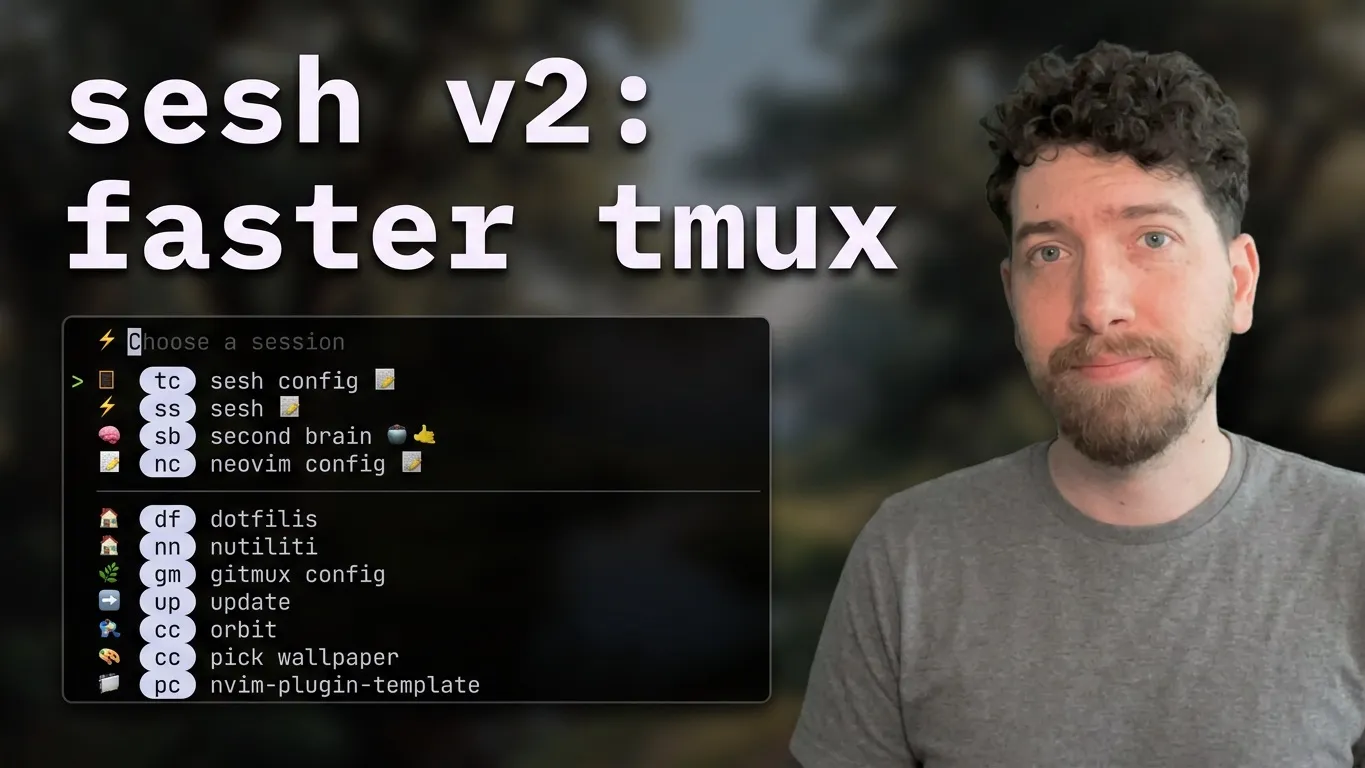
First, and most importantly, sesh has its own picker. Icons are now supported, including wildcards, worktrees, and configurations, so it just looks prettier, which I love. I personally think it’s faster than the fzf and gum tools.
Here’s how I bind it in my tmux.conf:
bind-key "K" display-popup -B -h 100% -w 100% -E "sesh picker -Hds"And here’s the [tui] and [icons] config that controls how it looks:
[tui]show_icons = trueshow_windows = trueprompt = "⚡"placeholder = "Choose a session"group_separator = truepreview = true
[icons]tmux = { icon = "🟢" }config = { icon = "🔧" }zoxide = { icon = "📁" }
For now there are some basic key bindings. Like ctrl+x will ask if you want to kill a session. There’s probably more to be added, but for now it’s very basic because the picker is good at switching between sessions. That is its goal. It’s become very quick and efficient and even better than before.
Aliases
The main reason the picker is so fast is the new alias feature. You’ll see these chips that sit next to the session names. These are aliases.
The most helpful way to use them is to just type the thing you have in mind, like tmux config, tc. When you type tc, you don’t have to hit enter. It will just automatically take you to that session. It’s really easy to use that muscle memory to jump to projects immediately.
[[session]]name = "sesh"icon = "⚡"path = "~/c/sesh"alias = "ss"alias_auto_connect = true
[[session]]name = "orbit"path = "~/c/orbit"startup_command = "hud --no-pages --page Orbit && exit"icon = "🛰️"alias = "oo"alias_auto_connect = true
You can also hit / to filter by all of the available aliases, which can be nice as you’re trying to build that muscle memory.
Index jumping
You can also do a type of index jumping by typing #. It will show you a set of numbers, and you just push the number that you want and it will immediately take you to that session.
I have a binding that opens the picker already in index mode:
bind-key "!" new-pane -O -C -B none -x 100% -y 100% -X 0 -Y 0 "sesh picker -idHs --query '#'"Nested sort order
The sources have changed too. In my list there’s a mix of custom configurations and zoxide entries (just projects I go to regularly). To better show off the pieces, you can change the sort order by nesting sources.
This is my setup. I have tmux first, and then config and zoxide grouped together so they get sorted by ranking together:
sort_order = ["tmux", ["config", "zoxide"]]Wildcards
Wildcard is another type of configuration if you just want to set custom icons (or a startup command) for certain areas:
[[wildcard]]pattern = "~/c/ob/*"icon = "💎"
[[wildcard]]pattern = "~/.config/tmux/plugins/*"icon = "🪟"
Worktrees are first-class citizens
That’s right. sesh can create new worktrees, and sesh can connect to and find existing worktrees. More importantly, I’ve found a way to very easily map your GitHub work (for me, GitHub issues) to worktrees as a one-to-one relationship.
First, you need to find a place to put your worktrees. I like to put all mine in a ./w folder, which holds all of the sessions.
Next, set it up in the sesh config. It needs the repo, the path, and the worktree directory. The branch template takes the issue number and applies it to the branch. Then there’s a base branch and, most importantly, a create command. The create command only runs the first time you create a worktree. Every other time, it falls back to the startup command.
[[worktree]]repo = "medeskisolutions/orbit"path = "~/c/orbit"icon = "🛰️"worktree_dir = "w"branch_template = "{number}"base_branch = "origin/main"create_command = "bun i && bun run setup:worktree && nvim && exit"The branch template can be whatever naming scheme you like:
[[worktree]]repo = "joshmedeski/joshmedeski.com"path = "~/c/joshmedeski_com"worktree_dir = "w"branch_template = "{number}"base_branch = "origin/main"create_command = "pnpm i"Connect to a worktree from the browser
This is the thing I do most with sesh now. I’m not creating worktrees. I’m not manually typing out commands to connect or find things.
Instead, I go to an issue in my browser and run the “connect to a worktree from browser” command in Raycast. It does all of the mapping and finding and takes me to that session. If the worktree doesn’t exist yet, it creates the worktree and sets up the project. It works incredibly well.
Tell sesh which browser to read the active tab from:
[browser]application = "Helium"Then the command is:
sesh worktree connect --browserSo this is how I work now. I scour GitHub, do the things I need to do there, and then switch to the worktree. I also have a button that takes me back to the issue, so the browser and the text editor kind of cross-communicate in a really helpful way.
Experimental worktree picker
There’s also an experimental worktree picker. Bind it to a key and it shows all of your worktree sessions using their issue titles, which is an easy way to get to worktrees, filter them, and know their status.
bind-key "R" new-pane -O -C -B none -x 100% -y 100% -X 0 -Y 0 "sesh worktree picker || tmux display-message -d 1000 'No worktrees detected'"If you want your session names to include the issue title everywhere, there’s an opt-in hook for that too:
set-hook -g session-created 'run-shell -b "sesh rename --enrich"'There’s more work being done with my new project, hud, which I’ll be making a video on soon, for more of a dashboard-type workflow. sesh is made specifically for switching and creating sessions, so I kept it simple, but these experiments are making the worktree experience even better.
Caching
The caching mechanism has been worked on, improved, and optimized. Turn it on in your config:
cache = truesesh can now also use tmux hooks. So when you create, close, or change a session, the cache refreshes itself on the fly:
set-hook -g session-created 'run-shell -b "sesh cache refresh"'set-hook -g session-closed 'run-shell -b "sesh cache refresh"'set-hook -g client-session-changed 'run-shell -b "sesh cache refresh"'And when you want to connect after killing a tmux server or anything like that, the picker has a no-cache flag. It makes it easy to start the picker immediately and make sure nothing is stale (valid feedback I got from Omer in the DevOps Toolbox video he made):
sesh picker --no-cacheI’m on an M5 Max, which is a very powerful computer, but I think people with a lot of directories, a lot of configs, or a lot of tmux sessions running at once should get a pretty significant performance boost from the cache. In my opinion it’s the fastest session switcher that exists right now.
CLI improvements
sesh now uses Cobra and Fang together to help with documentation, color coding, and keeping the CLI infrastructure simple. That’s been a really refreshing change since the original release.
There’s also been a good amount of work on the CLI itself. There’s strict mode for the configuration:
strict_mode = trueYou can pass custom config files through:
sesh --config ~/.config/sesh/sesh-custom.toml connect testYou can split your config across multiple files with imports:
import = [ "~/.config/sesh/configs/windows.toml", "~/.config/sesh/configs/configs.toml",]You can format the list, if you decide you want to stay with fzf:
sesh list --icons --format '{active_window_name_prefix}{name}'And if you want to rename sessions based on a certain pattern, there’s name substitution:
[[name_substitution]]find = "~/c/ob/"replace = "ob/"The sesh skill
There’s a sesh agent skill. When you start work in one place, you might want to spin up a new tmux session and continue working somewhere else. It’s very early in its stages, but it’s a really useful way to tell Claude Code, OpenCode, or Pi, “when you create new work, start a new session,” and trigger your workflows and windows and all of that.
npx skills add joshmedeski/sesh -gWindows support
I’m also happy to share that sesh has Windows support. So if you’re a Windows user who had trouble getting sesh to work correctly, it should be pretty reliable now.
What’s next
I’m really grateful for all the contributors I’ve had over the years. sesh is nowhere near done. There are plenty more features coming and more optimizations to be made.
This agentic world we live in now is something I’m doing a lot in, and I’m hoping sesh embraces some of those patterns a bit more. I’ll be making more videos about my own workflows with sesh and how I use tmux and sesh effectively to, in my opinion, move faster than most people. Speed is still a huge selling point for sesh, and with all of these changes I think it’s a better fit than ever before.
So try out the new picker, start playing around with worktrees, and turn on caching if you want a little more speed. Thank you to all my community members, and more to come in the future.
Sign-Up for New Posts
Stay in the loop and get the latest blog posts about tmux sent to your inbox.
Or use the